Many people ask, “Can I connect my phone to an Epson projector?” The answer is yes. You can connect your phone to an Epson projector. But how? This article will explain easy ways to do it. We will also talk about what you need and how to make it work well.
Why Connect Your Phone to an Epson Projector?
Using your phone with a projector is useful. You can show photos, videos, and presentations on a big screen. It is great for school, work, or watching movies with friends. Instead of looking at a small phone screen, you see everything large and clear.
What Do You Need to Connect Your Phone?
Before connecting, you need some tools. Here are the main things:
- Your phone: It can be Android or iPhone.
- Epson projector: Make sure it supports phone connection.
- Cables or adapters: Different phones need different cables.
- Wireless connection: Some Epson projectors work with Wi-Fi or Bluetooth.

Check Your Epson Projector Model
Not all Epson projectors connect the same way. Some have many ports, some have wireless options. Look at your projector’s manual. Find which ports it has. Common ports are HDMI, USB, VGA, and audio out. Also, check if it can connect to Wi-Fi or Bluetooth.
Wired Connection: Using Cables
One easy way to connect your phone is with cables. Here are common cable options:
| Phone Type | Cable Needed | Projector Port |
|---|---|---|
| Android Phone | USB-C to HDMI or MHL cable | HDMI port |
| iPhone | Lightning to HDMI adapter | HDMI port |
| Older Phones | Micro USB to HDMI (MHL) | HDMI port |
To use cables, plug one end into your phone. Plug the other end into the projector. Then, select the correct input on the projector. You will see your phone screen on the big display.
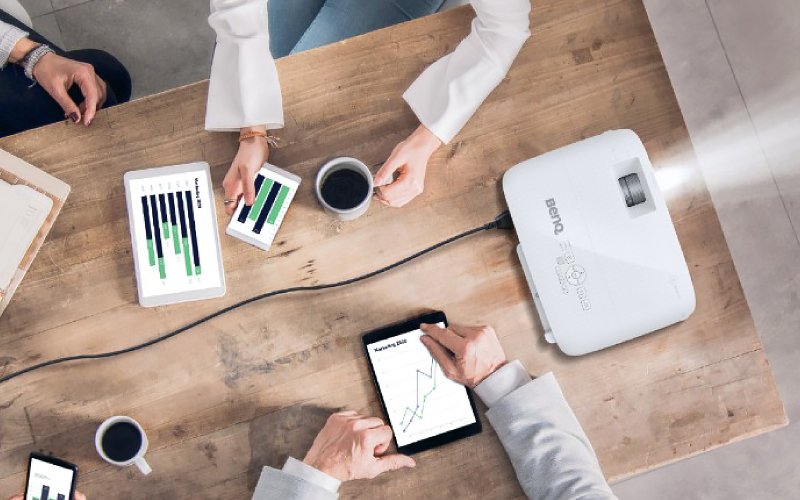
Wireless Connection: Using Wi-Fi or Screen Mirroring
Many Epson projectors support wireless connections. This means no cables are needed. You connect your phone using Wi-Fi. The phone sends the screen to the projector. This is called screen mirroring or casting.
To use this, follow these steps:
- Connect your phone and the projector to the same Wi-Fi network.
- On your phone, open the screen mirroring or cast option.
- Select the Epson projector from the list of devices.
- Wait a few seconds for the connection to start.
- You will see your phone screen on the projector.
Note: Not all phones or projectors support this. Check your device manuals.
Using Epson iProjection App
Epson has a free app called iProjection. It helps connect phones to projectors. The app works on Android and iPhone.
How to use the app:
- Download Epson iProjection from Google Play or Apple Store.
- Open the app on your phone.
- Connect your phone and projector to the same Wi-Fi network.
- Use the app to find the projector.
- Select the projector and start sharing your screen or files.
This app works well for presentations and photos.
Tips for a Better Connection
- Use good quality cables for wired connections.
- Keep your phone charged during use.
- Make sure both devices are on the same Wi-Fi network for wireless use.
- Update your phone and projector software if possible.
- Close other apps on your phone to avoid lag.
Common Problems and Solutions
Sometimes, connection problems happen. Here are some common issues and fixes:
| Problem | Possible Cause | Solution |
|---|---|---|
| No Image on Projector | Wrong input selected | Change input source on projector |
| Phone Not Detected | Different Wi-Fi networks | Connect both devices to same Wi-Fi |
| Screen Mirroring Stops | Weak Wi-Fi signal | Move closer to the router |
| Video is Choppy | Old cables or slow Wi-Fi | Use better cables or improve Wi-Fi |
Can I Connect My Phone to Any Epson Projector?
Most Epson projectors support phone connections. But not all support wireless connection. Older models may need cables only. Newer models often have Wi-Fi and Bluetooth. Check your projector’s manual or Epson’s website.
Summary
Yes, you can connect your phone to an Epson projector. You can use cables or wireless methods. Cables like HDMI adapters are common. Wireless options use Wi-Fi and apps like Epson iProjection. Always check your device ports and features first. Follow simple steps to connect. Fix common problems with easy solutions. Enjoy your big screen from your phone!
Connecting your phone to an Epson projector is simple. It makes sharing content easier and fun. Try it today and see your phone on the big screen.
Frequently Asked Questions
Can I Connect My Phone To An Epson Projector Wirelessly?
Yes, many Epson projectors support wireless connection via Wi-Fi or Miracast. Check your projector’s manual for setup steps.
What Cables Do I Need To Connect Phone To Epson Projector?
Use an HDMI or MHL adapter depending on your phone model and projector input. USB-C to HDMI adapters also work for some phones.
Does Epson Projector Support Android Phone Screen Mirroring?
Most Epson projectors with Wi-Fi allow Android screen mirroring via Miracast or Epson iProjection app. Confirm compatibility first.
Can I Use Epson Iprojection App To Connect My Phone?
Yes, the Epson iProjection app lets you wirelessly share your phone screen with the projector. Download it from your app store.